Azure Data Factory and Azure Synapse Pipelines – UponSkip

In ADF and Synapse Pipelines, there are 4 activity results:

  • UponSuccess
  • UponFailure
  • UponCompletion
  • UponSkip

The most important of these is the UponSkip result. Let me explain why.

Generally I have found everyone understands the top 3, and from a flow control standpoint, how to use them as they are pretty intuitive. That is until they want to build a single set of error handling logic and want it to trigger if any of a number of activities in the pipeline fail. Intuitively they connect the UponFailure from each of the activities they want to ‘catch’ the errors of, to the single error handling activity. Seems sensible, OnSuccess move to the next step, OnFailure go to the error handling activity. However, they quickly find it does not work, despite an error occurring on 1 of the activities, the error handling does not trigger.

So, why does this occur? There is a simple answer, but it is not intuitive. Lets go through what the the activity results are, and how they work.

While they are results, what they are not is flows or triggers. The results are actually dependencies, so we need to stop thinking of them in the context of the activity that creates them, and start thinking of them in the context of the activity they feed into.

With our new dependency mindset, lets revisit the above example, where there are many activities that we want to ‘catch’ when they error. Lets start with the error handling as this is what the UponError activaties feed into. This has many UponError results feeding it. As mentioned these are actually dependencies, and while you might assume they are a logical OR, as they are all dependencies they are in fact a logical AND. What this means is for the error handling to run, all the dependencies must be met, therefore all the activities with UponError results going into the error handling, must result in an error.

If you have UponSuccess dependencies linked to followup activities, that means if a prior step fails, the dependency wont be met, which means the next step cannot run at all, or to put it another way, cannot succeed OR fail. If it cannot fail, it will never trigger the UponFail that the error handling needs for it’s logical AND. If you saw this in the diagram it would just look like the pipeline stops after the first fail, nothing else is run.

You may already have given up and are thinking, like many, I will just copy the error handling so that for each UponError I want to catch there is a separate error handling flow. You might even be thinking that you will create a reusable error handling pipeline, and therefore you can just have a separate trigger for that for each UponError. This will work. I have seen this lots of times. It’s intuitive and easy to follow, but it is only required because there is a lack of knowledge of UponSkip, or more specifically, when an Activity is skipped.

Where does UponSkip come into this?

This would be a whole lot easier if every activity showed an icon for the result. We get an icon for Success (green tick) and Fail (red cross), and I suppose Completion is implicit (either a red cross or green tick), but there is no icon (a grey curved arrow?) for Skipping an activity. So when is an activity skipped, or more importantly, when will an UponSkip result trigger?

Key takeaway: An activity is skipped if it’s dependencies are not met. Conversely, an activity only runs if it’s dependencies are met. An activity either runs, or it is skipped.

So, how does this change how we build our pipelines?

When we think about the success path, nothing really changes. Assuming sequential activities, we setup UponSuccess dependencies and when an activity succeeds the next activity is triggered, because its dependency is met.

We have to think differently when we want to manage errors. There is a good article from Microsoft that, with our new understanding of dependencies and UponSkip, shows some of what we can do:

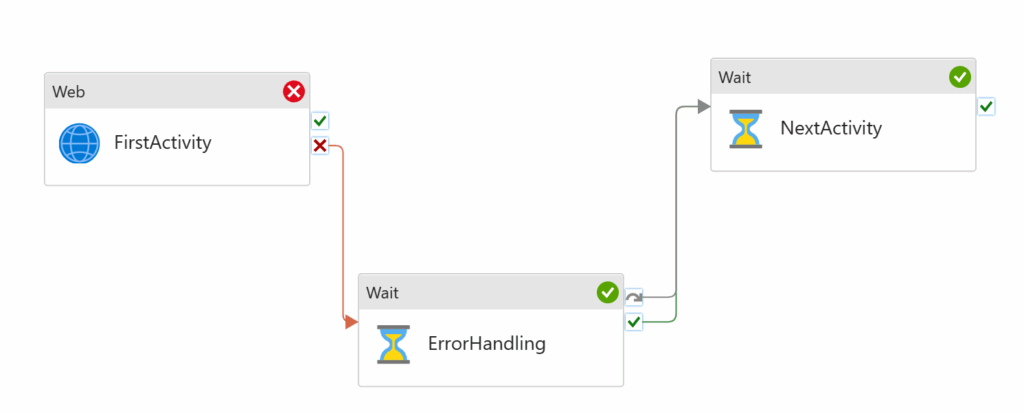
Pipeline Logic 3: Error Handling and Try Catch

In the above diagram, the first activity fails. The ErrorHandling dependency of UponFailure is met, therefore it runs successfully. The NextActivity dependency of UponSuccess is met, so that also runs. Hence the red cross followed by 2 green ticks.

Some may look at this an ask, “what if the first activity succeeds?”.

Based on what we now know, nothing happens because it succeeds, because nothing is dependent on it succeeding. Because the ErrorHandling activity is dependant on the UponFailure of the the FirstActivity, it’s dependencies are not met, therefore it is skipped. The final NextActivity has its UponSkip dependency met, therefore it runs.

More concisely, in the above diagram, if the FirstActivity succeeds, the ErrorHandling is skipped and the NextActivity runs.

This is counter intuitive to many because there is no UponSuccess line from the FirstActivity, so if we thought of it as a flow, on succeeding nothing else runs, but when we think of it in dependencies, it makes sense. It is also worth pointing out that if we only wanted the NextActivity to trigger if the FirstActivity succeeds, then we would need to create that dependency as a the moment it will always run regardless of if the FirstActivity succeeds or fails.

UponSkip – Critical for error handling

“But what if there were steps before the FirstActivity that we also wanted our ErrorHandler step to trigger on?”

Lets assume that we added to the above diagram, 2 more activities before the ones in the diagram. These activities have a single result line creating UponSuccess dependencies on the follow-up activities.

If they all succeed, each activity runs, the ErrorHandling would be skipped, and the final NextActivity would run. This is exactly what you would want.

As it stands, if either of our 2 new activities failed, nothing more would run, no error handling, nothing. This is because none of the following activity dependencies would be met as they are all reliant on UponSuccess of the previous activity. At this point you are probably thinking, because it is so ingrained, that we need to add some UponFailure results and dependencies. For our current use case, this would be a mistake. What we need to add is a single UponSkip dependency to the ErrorHandling activity from the FirstActivity.

I’ll repeat, we dont add any UponFailure results, we only add a single UponSkip between the ErrorHandling activity and the activity before it.

We have to remember our keypoint from above. An activity is skipped if its dependencies are not met. If any of the prior activities fail, the UponSuccess dependency of the following activities are not met, therefore they are skipped, and this cascades, everything being skipped. This only stops along the ‘chain’ as our UponSkip dependency of our ErrorHandling activity is met so that runs. Perfect!

We still need the UponFailure of the last activity before the ErrorHandling step as if everything but that one succeeds, it wont be skipped as it instead fails therefore that needs to be an UponSkip OR UponFailure dependency on the ErrorHandling activity.

TLDR

  • Activity results are not flows, they create dependencies for the linked activity.
  • Dependencies from multiple activities are treated as logical AND.
  • Multiple dependencies from the same activity are treated as logical OR (as there can only ever be 1 result).
  • Any activity where it’s dependencies are not met is skipped, and can then be used to meet an UponSkip dependency.

I struggled to find any useful articles covering this, even directly from Microsoft. Hopefully this has helped explain why understanding UponSkip and when an activity is skipped is so important, as it can reduce work, especially repeating part of your pipeline error handling… and if you don’t have error handling in your pipelines in the first place… well…

Power BI/Fabric model performance – Query Folding

This is a quick post about how to get the most out of Power BI (Fabric) model performance, keeping those models under control, refresh times low and live dashboard snappy. In this post I am going to focus on the data sources and efficiently loading data.

Power Query and M can do everything!

While Power Query and its underlying M language is great and can do so much, as with anything, that does not mean you should use it for everything.

I imagine most Power Query users at some point reduce the data that is in their model. This might be with filters on certain columns to reduce the rows, or by completely deleting unused columns. This makes sense and if you are not doing this, start doing it right now. Those eagle eyed of you however may have noticed that this does not always reduce the number of rows that are initially loaded and as such your model refreshes still take a long time. This is because your steps may be forcing all the data to get loaded into Power Query before these steps are applied. You may find that sometimes it does improve the load times and you are not sure why.

Using SQL queries as data sources

A way to improve load times of your model is to potentially reduce the result set up front by using a SQL query as your data source. This is not wholly a bad idea, however it can quickly become more painful than it first seems depending on the scale of your activities.

Doing this represents another piece of custom code that needs to be managed, and dare I say source and change controlled. Even if you put the code in a stored procedure or view to ensure that the code is managed in your data platform, the above still applies. This assumes you have permissions on the data platform to do this in the first place.

Perhaps equally as important is that doing this removes the ability for Power Query to perform Query Folding for you (there are workarounds, but this will be true for most). If your power query only has the single source load step, then this might not be a problem, but just because that is the case now, doesn’t mean it will be in the future.

Short version, use tables, not queries… yes even if the query is “SELECT * FROM myTable).

What is Query Folding?

The short version is, Power Query taking the steps you created and “folding” them into a single efficient SQL query, reducing the rows you have to import and pushing back processing on to the most likely, more efficient database platform.

You can read more about this here: Understanding query evaluation and query folding in Power Query – Power Query | Microsoft Learn

How do I know when query folding is happening?

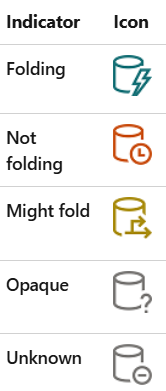
This is actually really easy. For each step in your ‘applied steps’ section in Power query, there are some icons/indicators.

You want to see as much of the top icon as possible, however the image was taken from the following link and contains a much more detailed explanation of the indicators: Query folding indicators in Power Query – Power Query | Microsoft Learn

Further to the indicators, you can right click on a step and open the Query Plan for it. Here you can see the plan for that step giving a more detailed view of the parts that are folding with the remote tag, and you can even see the query that is being run. More on the query plan here: Query plan – Power Query | Microsoft Learn

Order Matters

As soon as a step cannot fold, all following steps will not fold (technically this is not exactly true, but is a good rule to follow for simplicity sake). This presents an opportunity to, where not fundamental to your transformations, get as much folding done before the non-foldable step(s).

Order also matters literally. For example (shamelessly taken from the MS link above), if you use LastN, there is no BOTTOM in SQL, but there is a TOP, so instead consider changing the order of the data and use TopN. Sounds obvious, but only if you are aware of what query folding is.

What will fold?

The easiest way to think about all this is, what is possible in the data source. Things like filtering (where clause), removing columns (select), some basic calculations (multiply a column by 10) will generally fold on a SQL database source for example.

While this is true, there is a level of complication involved. Just because you might be able to do it in SQL, doesn’t mean that Power Query will know how to, so another good rule is to keep the applied steps as simple as possible for as long as possible, especially those that reduce the size of the data set.

While you may not have much influence over this, a simple dimensional model can also make this easier as it will naturally lean towards your power query steps being simple.

Deliberate

As you have probably gathered, there is a lot of information on query folding. It can get complex. What I hope to have provided is a short introduction to get you started and ultimately promote awareness so that you can deliberately use it in the future.

Power BI/Fabric model performance – VertiPaq

This is a quick post about how to get the most out of Power BI (Fabric) model performance, keeping those models under control, refresh times low and live dashboards snappy. In this post I am going to focus on the data storage engine used in Power BI.

The same engine, with some tweaks, powers SQL Server columnstore technology, so what I will cover here also applies to that.

VertiPaq

VertiPaq is the data engine in Power BI. Its how the data is stored and retrieved once you have got it into your Power BI semantic model. It is primarily an in Memory engine with high compression capabilities. It is sometimes referred to as xVelocity engine.
The compression and performance is largely aligned with the number of unique rows in any given column. Therefore, the fewer number of unique rows in a column, the more compressed that column will be.

Date and Time

Lets consider the use of Dates and Time. Imagine we have a sales table which has entries for each sales transaction and stores the date and time to the nearest hour. Which is more performant in Power BI, a combined Date and Time column, or 2 separate columns of Date and Time?
There are 365 days in a year, so if our data only covered a single year, a separate Date column would have a maximum 365 unique values.
There are 24 hours in a day. As we are only storing the time of transactions to the nearest hour, the Time column would have a maximum of 24 unique values.
If we had a combined Date and Time column, the uniqueness is a Cartesian Product of the 2 columns, in our case 365 x 24 = 8,760 potential unique values. An exponential increase, which will have an exponential increase in your model size.

Unique Identifiers

Unique Identifiers in your model will also have a big impact. Lets assume you are reporting over your very large customer base. You want to do things like counts of different customers, by demographics and more. Each row in your customer fact table represents an individual customer, along with a unique ID. Suddenly you have a completely uncompressible column. Worse still the customer ID is not stored as an efficient INT or BIGINT, its a VARCHAR.
Not a lot you can do about this right? We need it to count customers don’t we? Well No actually. If you know each row represents a customer, and you are not explicitly using the Customer ID for anything, you can just count the number of rows and remove the completely uncompressible column. The row count will still represent a count of the unique customers, by what ever filtering you apply, but your model will be noticeably smaller and more performant.

Summary

Always consider Column uniqueness in your Power BI/Fabric semantic models. Can you split columns and still provide the same functionality, like the Date and Time example? Are you explicitly using Unique identifiers or can you get the same functionality another way?

HBO Chernobyl – Did It Really Happen – No Spoilers

I recently had cause to watch HBO’s Chernobyl from 2019 and there is no doubt it was incredibly compelling TV.
The story and portrayal of what the people of Russia had to go through, along with an explanation of what happened, brought out a number of emotional responses across the audience.

People were lied to. Unnecessary lives were lost. Accountability was not in the frame. It is a hard but gripping watch.

Did It Really Happen

In the current day and age of health and safety, you would be forgiven for asking, “did these things really happen?”
Whilst I approached the show with some prior knowledge (I was alive when it happened), I often wondered throughout the episodes how much of it was true, and how much was good storytelling. To the Internet I went.

https://www.express.co.uk/showbiz/tv-radio/1134141/Chernobyl-How-historically-accurate-is-Chernobyl-HBO-Sky-Atlantic-true-story-real-life

According to the above article, the Creator and Director were obsessed with accuracy, doing over 2 years of research. They even filmed it at Chernobyl’s sister site so that as much of the setting could be as accurate as possible.
All of the main events in the show actually happened.

A fictional character?

While it was incredibly factual, one of the main characters is a work of fiction.
Emily Watson’s character, Ulana Khomyuk was created to represent all the scientists and people that fought against the Russian narrative and that wanted to the truth to be know.

I heartily recommend this show. While it isn’t a feel good show, it is incredibly compelling and very well put together. If you have not watched the show and/or want to know more, here are some links for you:

Chernobyl | Official Website for the HBO Series | HBO.com

Chernobyl (miniseries) – Wikipedia (SPOILERS

HDC400 Dashcam in 2025

The HDC400 dashcams from Halfords were a bargain a few years back when I bought one.  Installation was easy and I was very impressed by the quality of the recordings.

Inevitably we changed cars and I finally got around to installing it in the new car, however this was far from the easy experience I had last time, so I am sharing what I learnt… mainly for me next time I change cars but also for anyone else in the same boat.

First problem.  The original Halfords app for these cameras is nowhere to be found.  If this dashcam had a screen and controls we might not need an app (note to self for future dashcam purchases), but in order to see what the dashcam can see and therefore where to affix it, you need the app.

After a lot of searching I managed to find the Ring Connect app.  This app, although not offering any official support, will connect to the HDC400 dashcam, at least enough to provide a live view.

Second problem.  The wireless connection to the camera needs a password.  I could not find this documented anywhere in the instructions.  The one suggested in the Ring Connect app did not work.  Time to put my Google Fu to use again.

I found the password in the oddest of places… “The Army Rumour Service (ARRSE) is the unofficial voice of the British Army community Our members include serving people, veterans and friends!” 
Someone was in a similar scenario on this thread, Halfords hdc400 dashcam | Page 2 | Army Rumour Service, where it was being discussed. After a few suggestions the password was identified! 
66668888 is the default password to the dashcam Wi-Fi.

Armed with this I was able to connect to the camera and fix it in place and it is working as it did.

One thing to note.  The app does not seem to be able to do much else with the dashcam besides the live view, so to view or download recordings successfully, you will need to pull out the SD card and connect it to a computer.

ISA Rates vs Regular Savings Rates – Calculations

Seems like an odd post title, but it is the best I could come up with, thinking about what I might search for. So what is this post about?

ISA stands for Individual Savings Accounts, and is a government backed tax free savings account for persons in the UK. There are 2 types of ISA’s available, Cash and Stocks and Shares. They both share an investment limit of £20,000 per tax year at time of writing. The key thing here is that you do not pay any tax on earnings (interest).
You can read more about ISAs here: Individual Savings Accounts (ISAs): Overview – GOV.UK

In this post I am going to share a simple method of comparing rates between a Cash ISA and a regular savings account. Why does this matter? The tax. The rate you are earning in a regular savings account is subject to tax, therefore you don’t actually earn that amount so comparing an ISA rate to a regular savings rate is not a true comparison.

Luckily comparing is easy. The TLDR… multiply the ISA rate:

x1.25 if you are a standard rate tax payer
x1.66 if you are a higher rate tax payer

Here is a simple example. If you find an ISA rate of 4% and are a standard rate tax payer, multiply it by x1.25, which equals 5%.

How does this work?
Lets assume you have £2,000 in regular savings earning 5% per year. After a year you will have earned £100 in interest. However as this is taxable earnings, as a basic rate tax payer you will be charged 20% meaning you will only earn £80 after tax. £80 interest on £2,000 is actually 4%.

So why multiply 1.25 as a standard tax payer? Well actually this is just one way to calculate it, and I actually prefer a different way as it makes more sense in terms of the rate of tax you are paying, which could change.
My preferred way to calculate this would be to divide the ISA rate by 1 minus your tax rate. So for a basic tax payer of 20% it would be 1 – 0.20 = 0.80. Using our example above, 4% divided by 0.80 = 5%.
If you were a higher rate tax payer it would be similar. 1 – 0.40 = 0.6, therefore 4% divided by 0.60 = 6.66%

So, there it is…or is it? For comparing rates that is pretty much it except for one important element:
Tax on savings interest: How much tax you pay – GOV.UK
If you earn less than £17,250, you can the difference between your salary and this figure in savings interest tax free, up to a maximum of £5,000.
Furthermore if you are a basic rate tax payer, you can earn £1,000 of interest tax free, and for higher rate earners its £500 tax free.
If any of the above apply for you, you wont pay tax on the interest you earn anyway, so you wont benefit from the ISA being tax free.

In the end you need to be aware of the best options for saving, which can be tricky. The biggest benefit of an ISA is that the money in the ISA earns tax free forever. As always DYOR, but hopefully this post at least highlights some of the things you should think about, and a neat calculation for comparing ISA rates to regular savings rates.